Help Center Home

 My Billing Statement

 My Services

 My Password

 Update My Payment Info

 Update My Address

 Upgrade My Account

 Billing Questions

 Connection Issues

 Email Questions

 Get Bluelight Software

 Safety/Security

 Contact Us

 
Select a different
Operating System

Spell Checking - Eudora 5.0

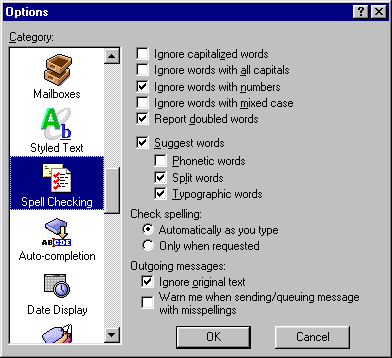
To change the options of Eudora's built-in spell checking feature, complete the following steps:

  1. From the Tools menu, select Options.
  2. From the scrolling column on the left, select Spell Checking.
  3. Select the appropriate spell checking options.
    Note: To have Eudora automatically spell-check your email, ensure that the circle next to Automatically as you type is checked.

  4. Click OK to exit.


Print This Page

Now viewing
support for
BlueLight Internet
PlatformWindows
OSWindows98
BrowserCCBot 1.0


NGCV