

 Billing History & Billing History &
Account Info

My Password
Update My Payment Info
Update My Address
Billing Questions
Access Numbers
Connection Issues
Email Questions
Get Bluelight Software
Safety/Security
Contact Us
|  |
 |
Email Setup - Eudora 4.3 - Open Eudora.
- From the Tools menu, select Options.
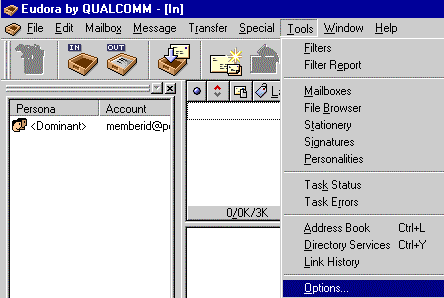 - Under Category, click on Getting Started.
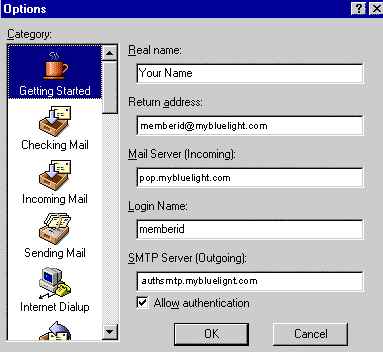 - In the Real Name text box, type your name.
- In the Return Address text box, type your email address.
- In the Mail Server text box, type pop.mybluelight.com
- In the Login Name text box, type your email address again.
- In the SMTP Mail text box, type authsmtp.mybluelight.com
- Clear the box next to Allow authentication.
- Under Category, click on Checking Mail.
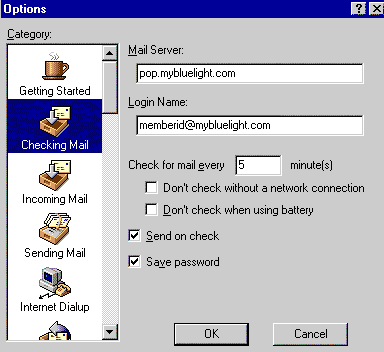 - In the Mail Server text box, type pop.mybluelight.com
- In the Login Name text box, type your email address.
- If you would like Eudora to save your password so it will not prompt you for it each time you check your mail, check the box next to Save password.
- Under Category, click on Incoming Mail.
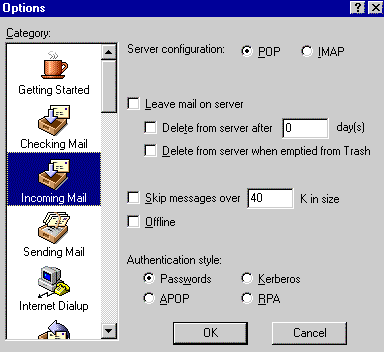 - Next to Server Configuration, check the circle next to POP.
- Under Authentication Style, check the circle next to Passwords.
- Under Category, click on Sending Mail.
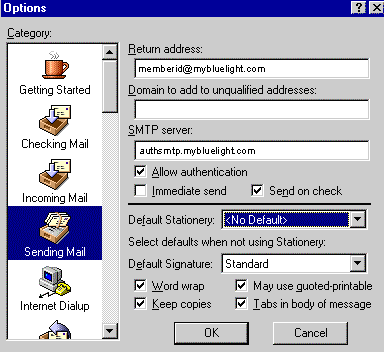 - In the Return Address text box, type your full email address.
For example: memberid@mybluelight.com - Leave the Domain to add to unqualified addresses blank.
- In the SMTP Server text box, type authsmtp.mybluelight.com
- Clear the box next to Allow authentication.
- Click OK.
Eudora 4.3 is now configured to check your BlueLight Internet email. To check your mail, select Check Mail from the File menu.
Note: Because of limits placed on your mailbox, you must complete the following steps to prevent your mail from being blocked or deleted.- From the Tools menu, select Accounts.
- Select the Mail tab and click on pop.mybluelight.com
- Click on Properties and select Advanced.
- Under the Deliver section, ensure that the Leave a copy of messages on server box is unchecked.
- Click OK to save.
| |
|



